Canva Safe Zone Template
Free Canva Safe Zone Template
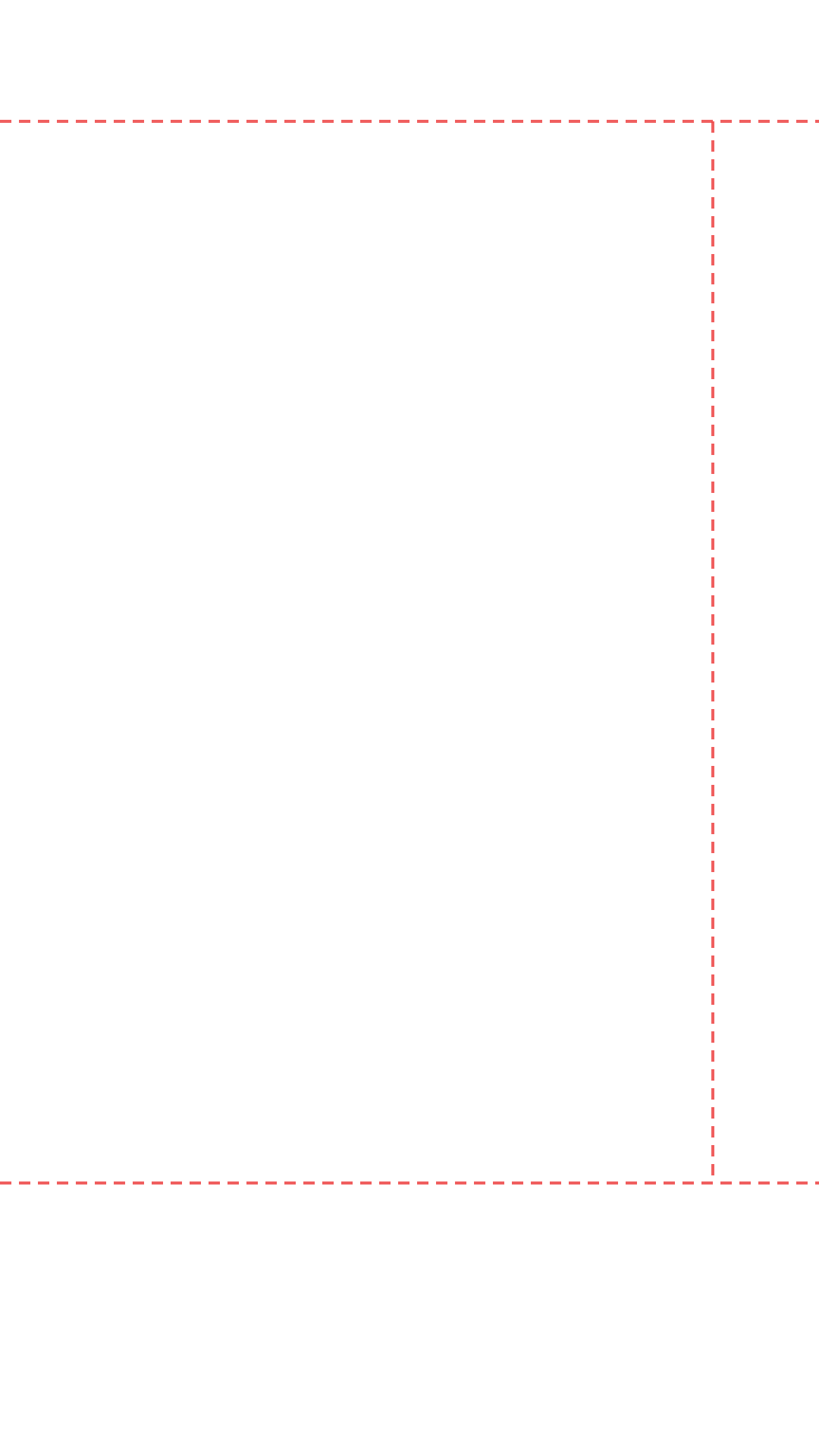
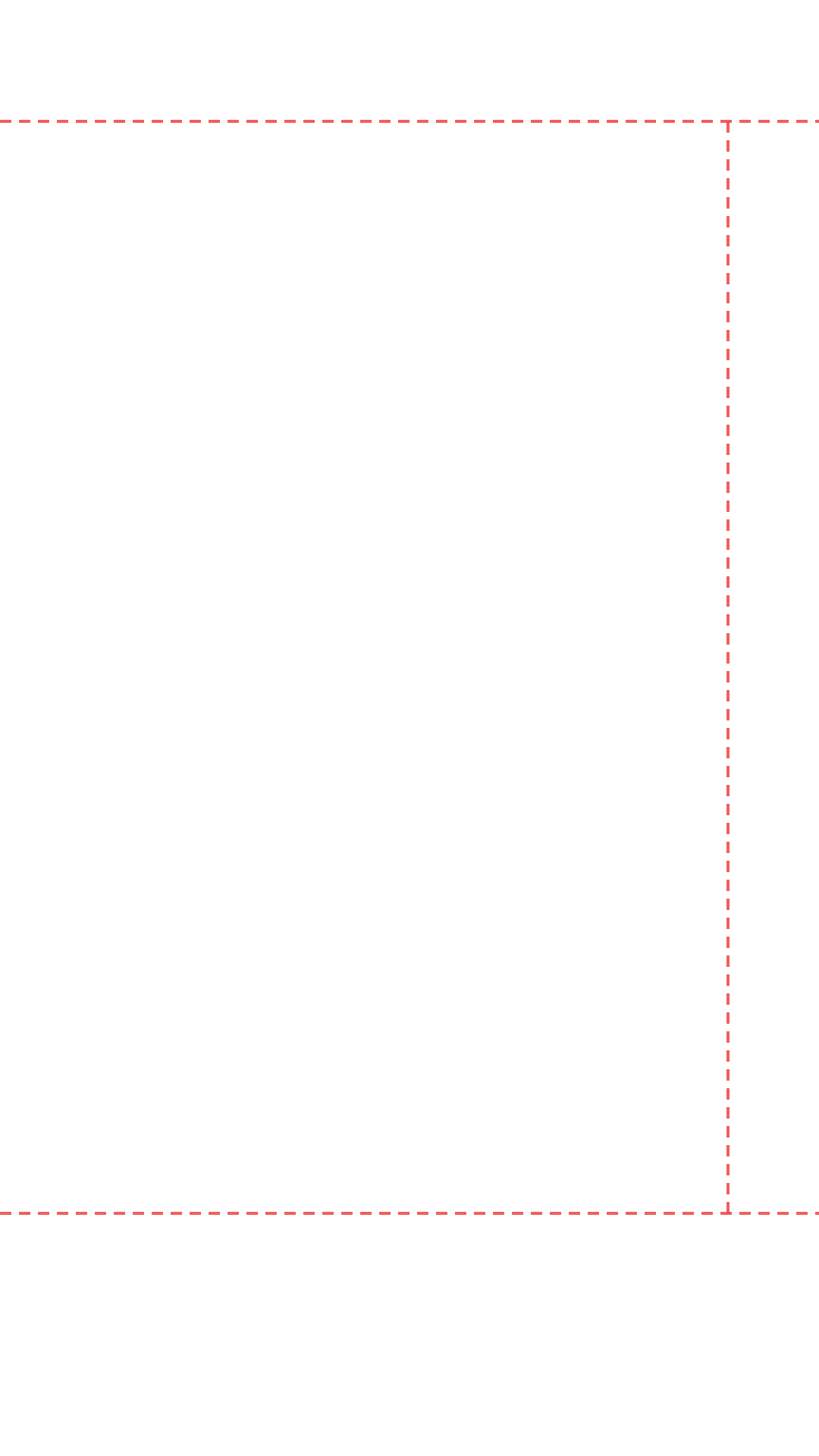
Download a free transparent PNG safe zone overlay for any platform and import it into Canva as a locked guide layer. Preview your design first using the tool below, then download the overlay that matches your platform.
Download Your Template
Download All Platforms — Free ZIP Pack

Preview Before You Download
1. Select Platform
2. Upload Asset
Images: PNG, JPG, WebP · Videos: MP4, WebM, MOV
Drag & drop your file here
Images: PNG, JPG, WebP
Videos: MP4, WebM, MOV (max 200 MB)
How to Use the Safe Zone Template in Canva
- 1
Download your platform PNG
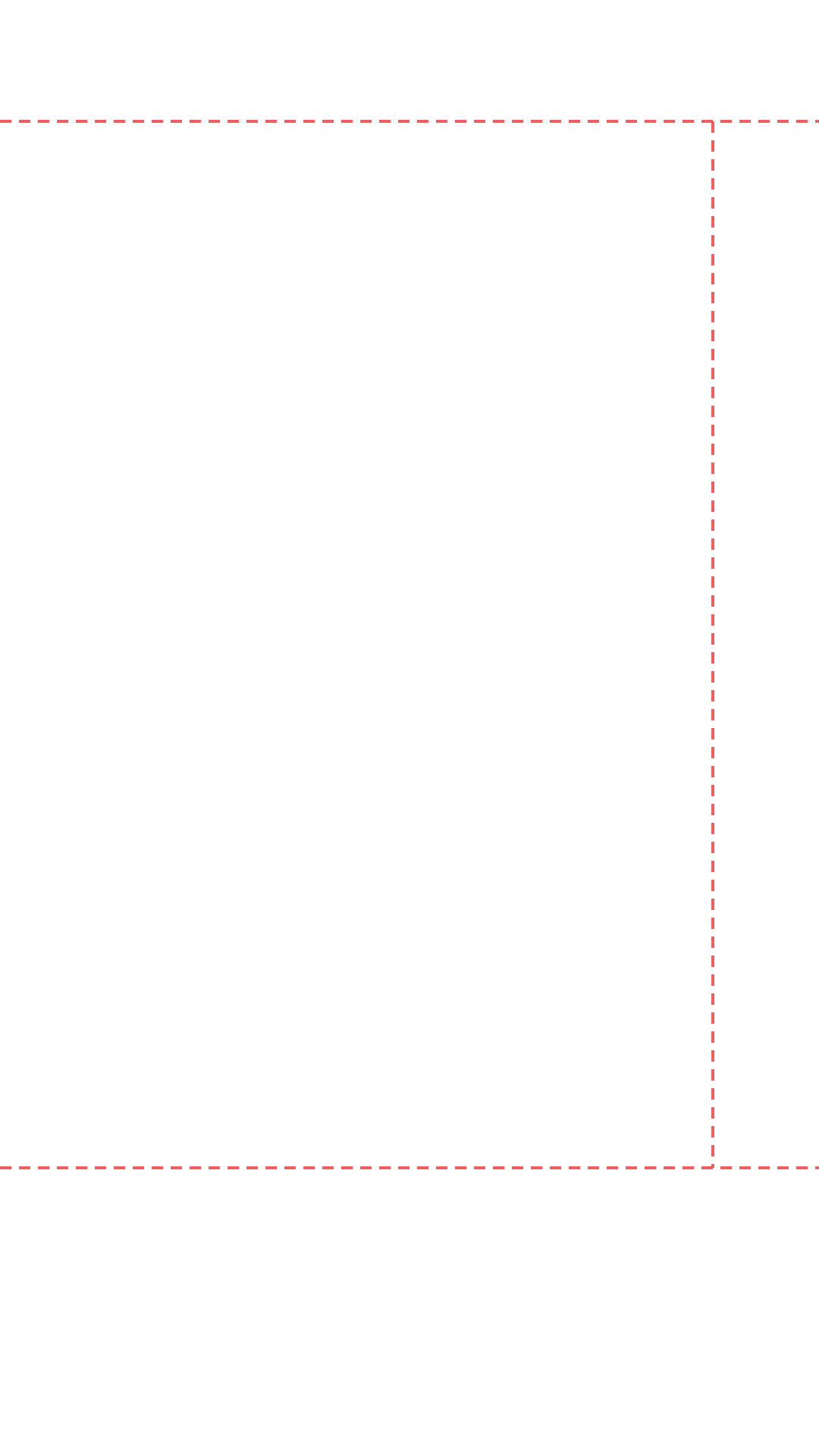
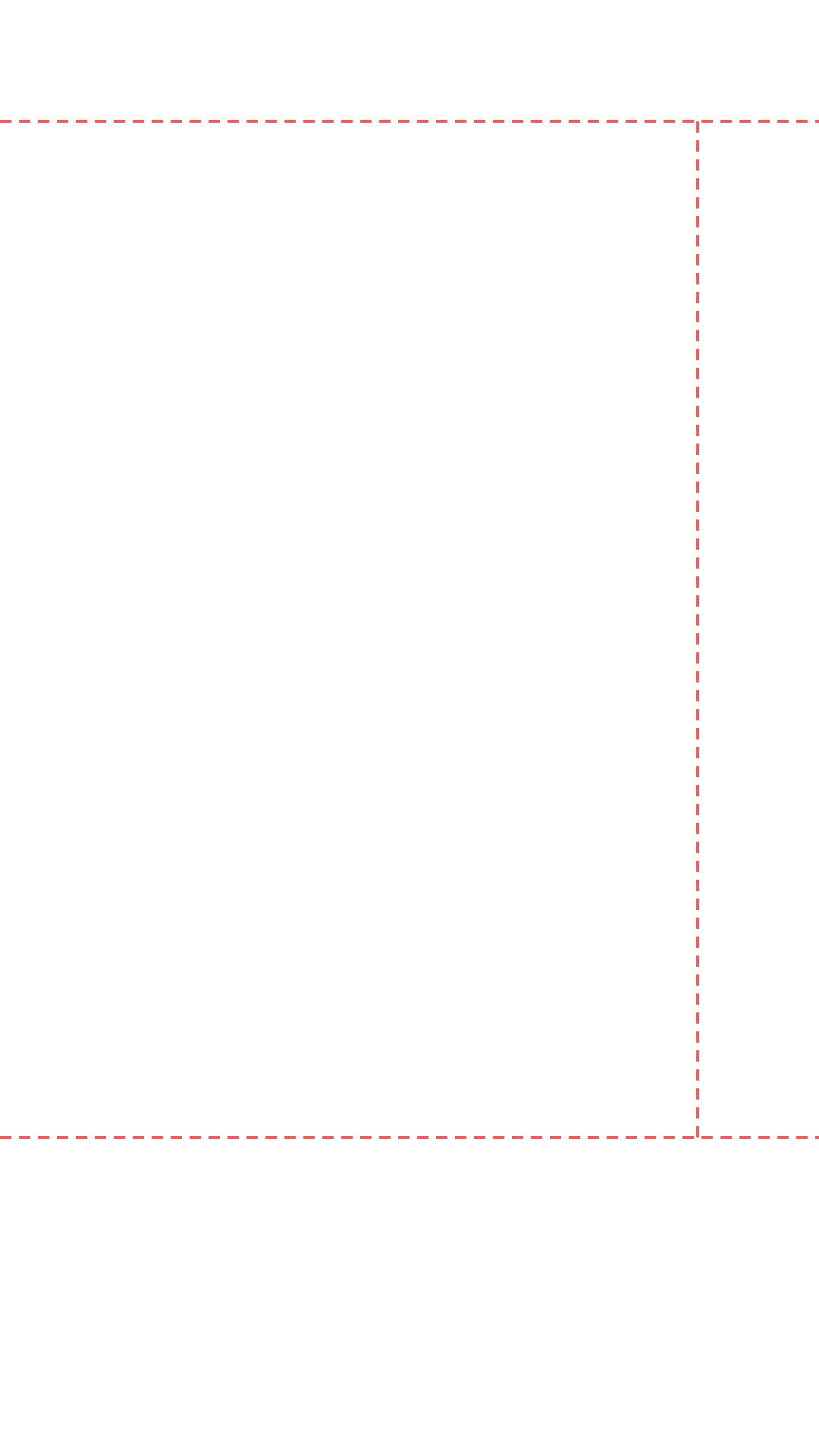
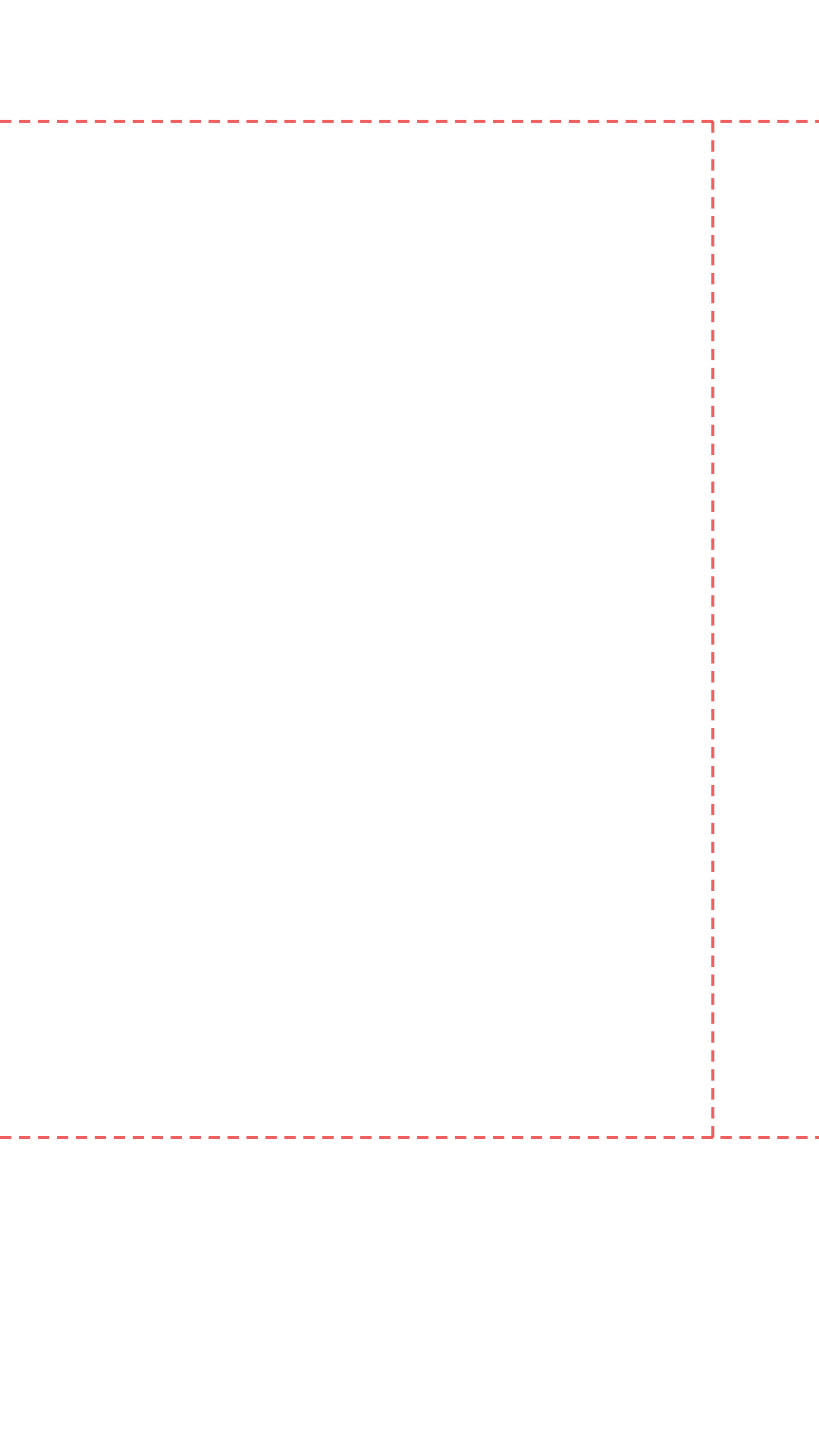
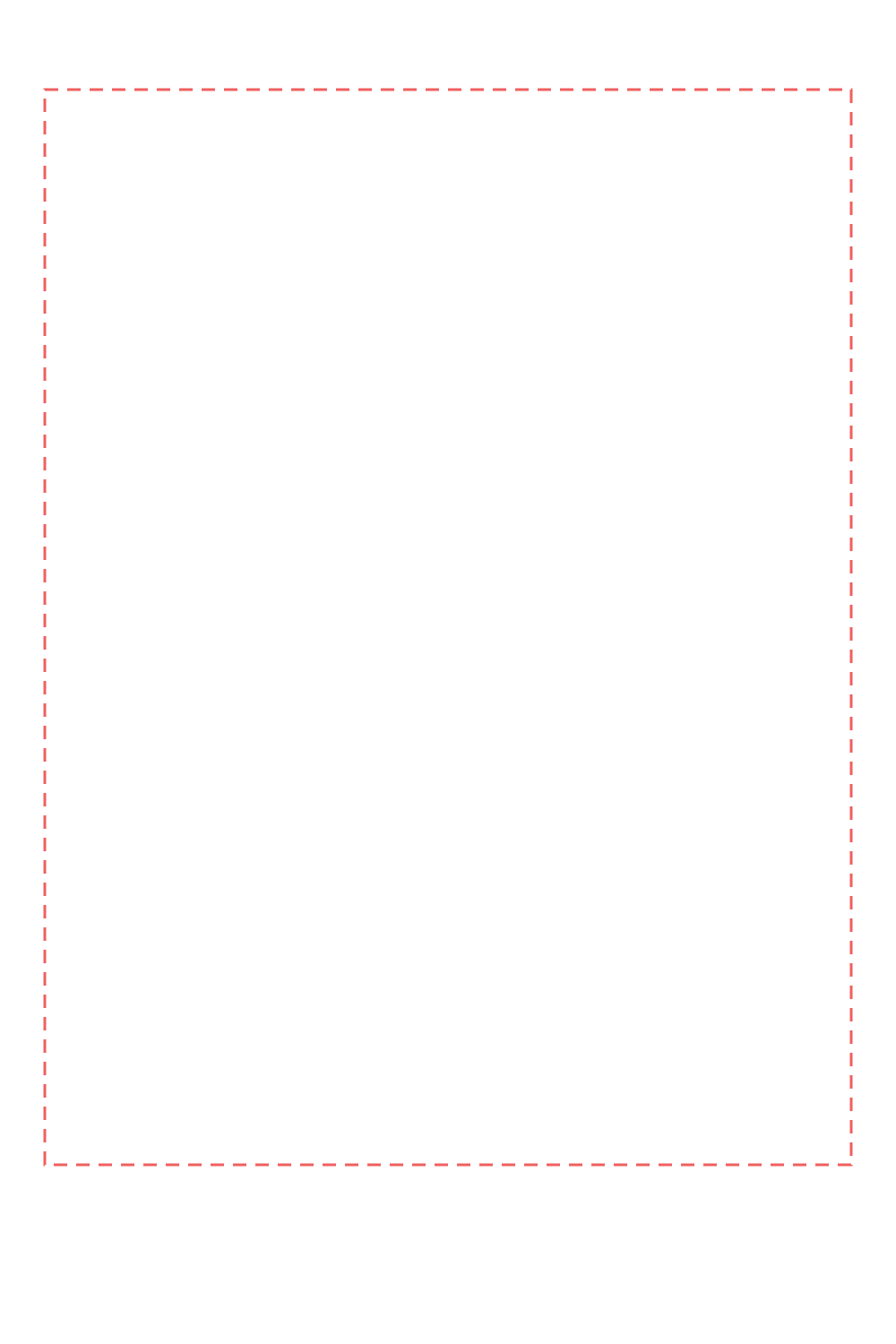
Click the platform button above to download the transparent PNG overlay for your platform. Each file is full resolution — 1080×1920px for vertical formats, 1280×720px for YouTube Thumbnails, and 1000×1500px for Pinterest.
- 2
Open your Canva design
Open the Canva design you want to check, or create a new one using the correct dimensions for your platform (e.g. 1080×1920 for TikTok or Instagram Reels).
- 3
Upload the PNG to Canva
In Canva, go to Uploads → Upload files → select the downloaded PNG. The file will appear in your uploads panel.
- 4
Add it to your design
Drag the uploaded PNG onto your canvas. Resize it to fill the entire frame — it should cover the canvas edge to edge. Because the background is fully transparent, only the red dashed safe zone lines will be visible.
- 5
Lock the overlay layer
Right-click the overlay element → select Lock. This prevents you from accidentally moving or editing the safe zone guide while you design underneath it.
- 6
Design inside the safe zone
Place all your text, logos, prices, and calls to action inside the boundary lines. Anything outside the lines risks being hidden by the platform's native UI when published.
- 7
Delete before exporting
When your design is ready, click the locked overlay layer and unlock it, then delete it before downloading your final file. The safe zone guide is a design aid — it should not appear in the published version.
Why You Need a Canva Safe Zone Template
Canva is one of the most popular design tools for social media content, but it does not include built-in safe zone guides for TikTok, Instagram Reels, or YouTube Shorts. This means creators designing directly in Canva have no visual reference for which areas of their canvas will be hidden by platform UI overlays when the content is published.
A Canva safe zone template solves this by giving you a transparent overlay with dashed boundary lines that you can lock as a permanent guide layer in any Canva design. Every platform has different safe zone margins — TikTok reserves 480px at the bottom for captions, Instagram Reels reserves 380px, and YouTube Shorts reserves 420px — so using a platform-specific template ensures your text and logos stay visible regardless of where the content is published.
The templates on this page match pixel-for-pixel what the live safe zone preview tool generates. You can use the previewer above to check your existing design first, then download the matching overlay template to use as a reusable guide in every future Canva project for that platform.
Canva Safe Zone Template vs Canva Frame Guide
Canva's built-in frame and grid tools are useful for layout, but they do not account for the specific overlay positions of social media platforms. A safe zone template is different — it is based on real device measurements of where each platform's buttons, captions, and navigation bars actually appear on screen. Using a platform-specific transparent overlay is more accurate than estimating margins from Canva's generic grid.
Which Canva Safe Zone Template Should I Use?
Use the template that matches the platform you are designing for. If you cross-post to multiple platforms, use the most restrictive template — TikTok has the largest bottom margin (480px) of all the 9:16 platforms, so a design that fits within TikTok's safe zone will also be safe for Instagram Reels, YouTube Shorts, and Facebook Reels. For Pinterest, use the dedicated 2:3 template since it uses a completely different canvas size (1000×1500px).