Figma Safe Zone Template
Free Figma Safe Zone Template
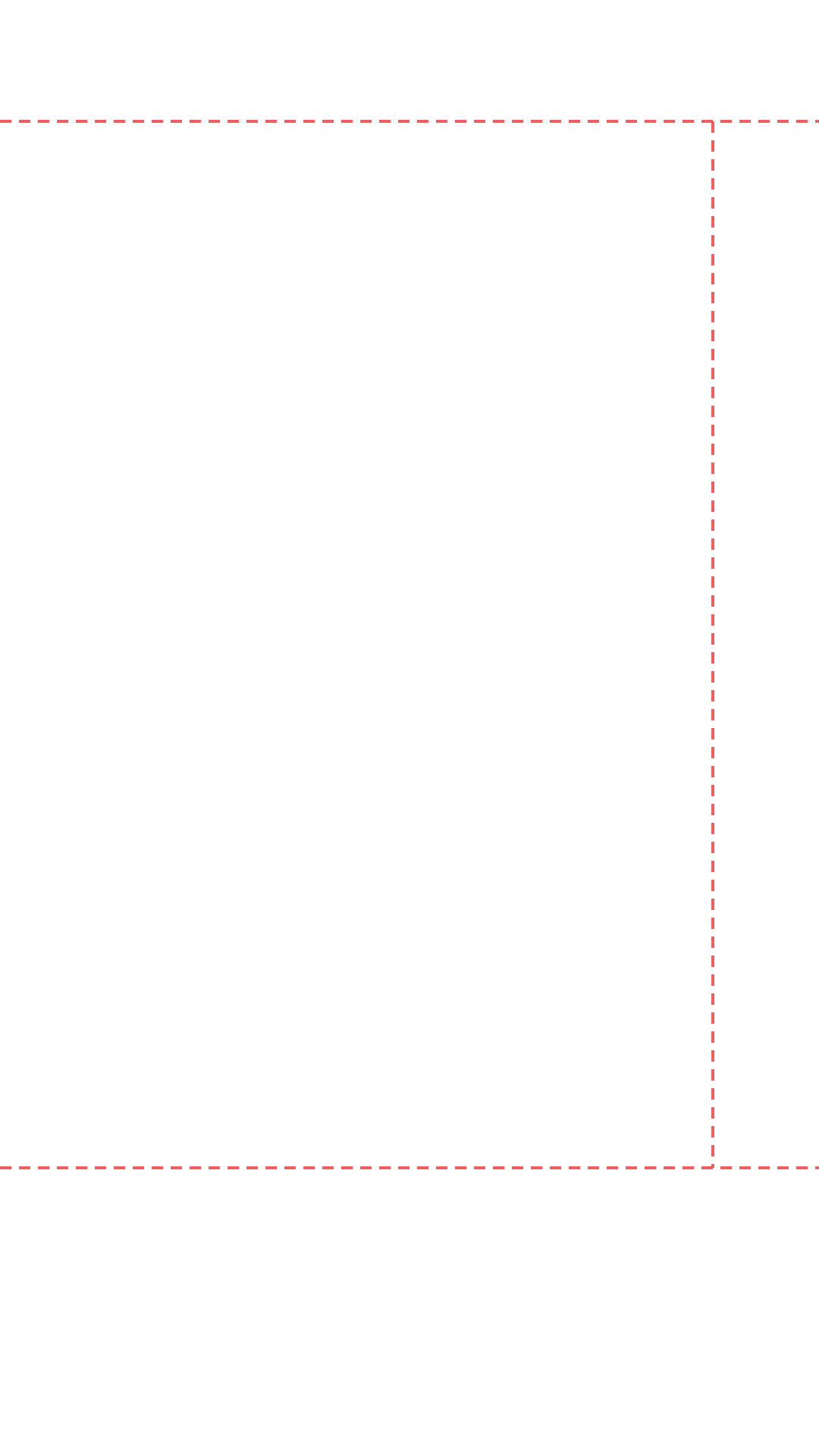
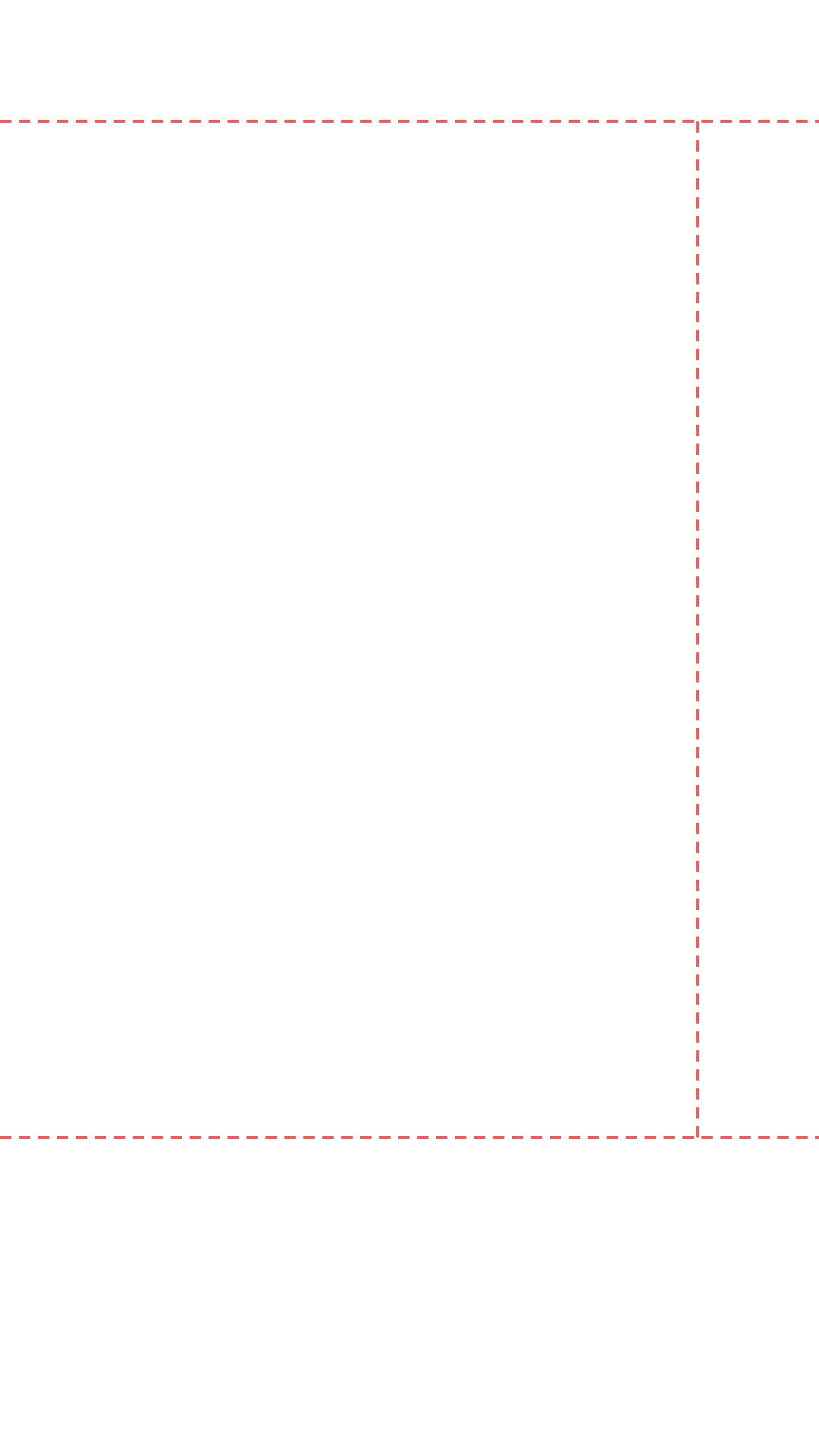
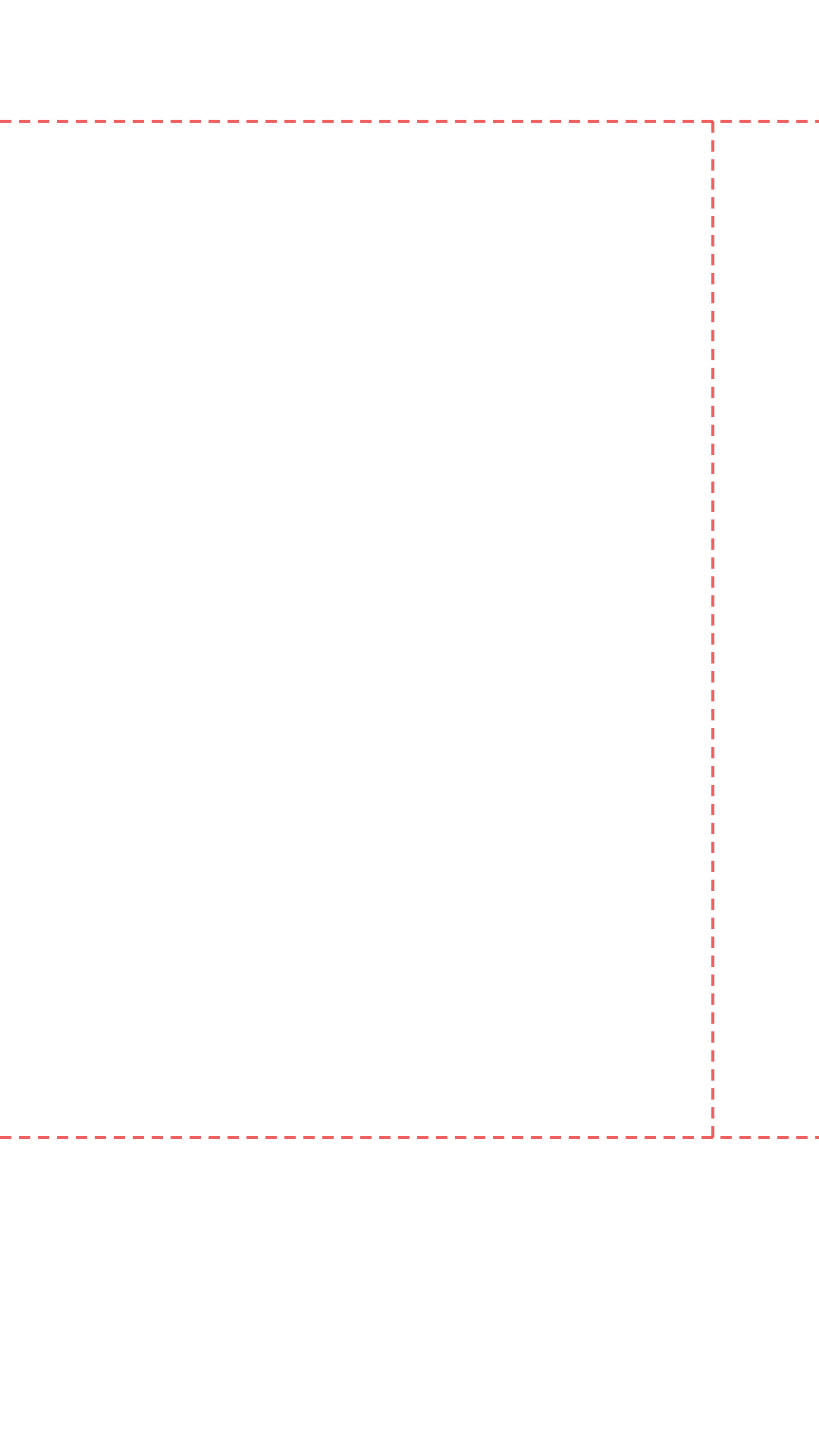
Download a free transparent PNG safe zone overlay for any social media platform and import it into Figma as a locked guide layer. Preview your design using the tool below, then download the template for your platform.
Download Your Template
Download All Platforms — Free ZIP Pack
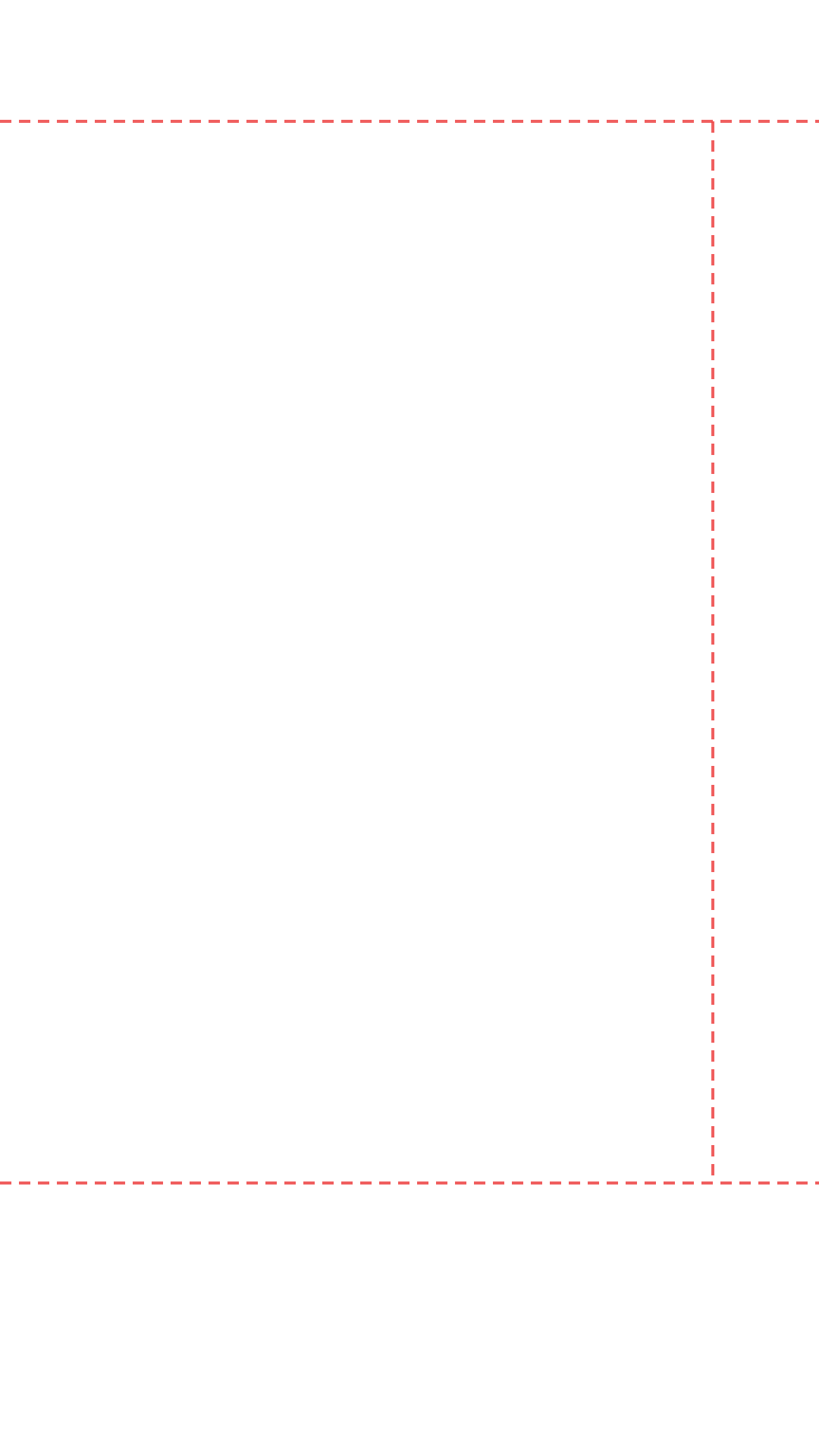
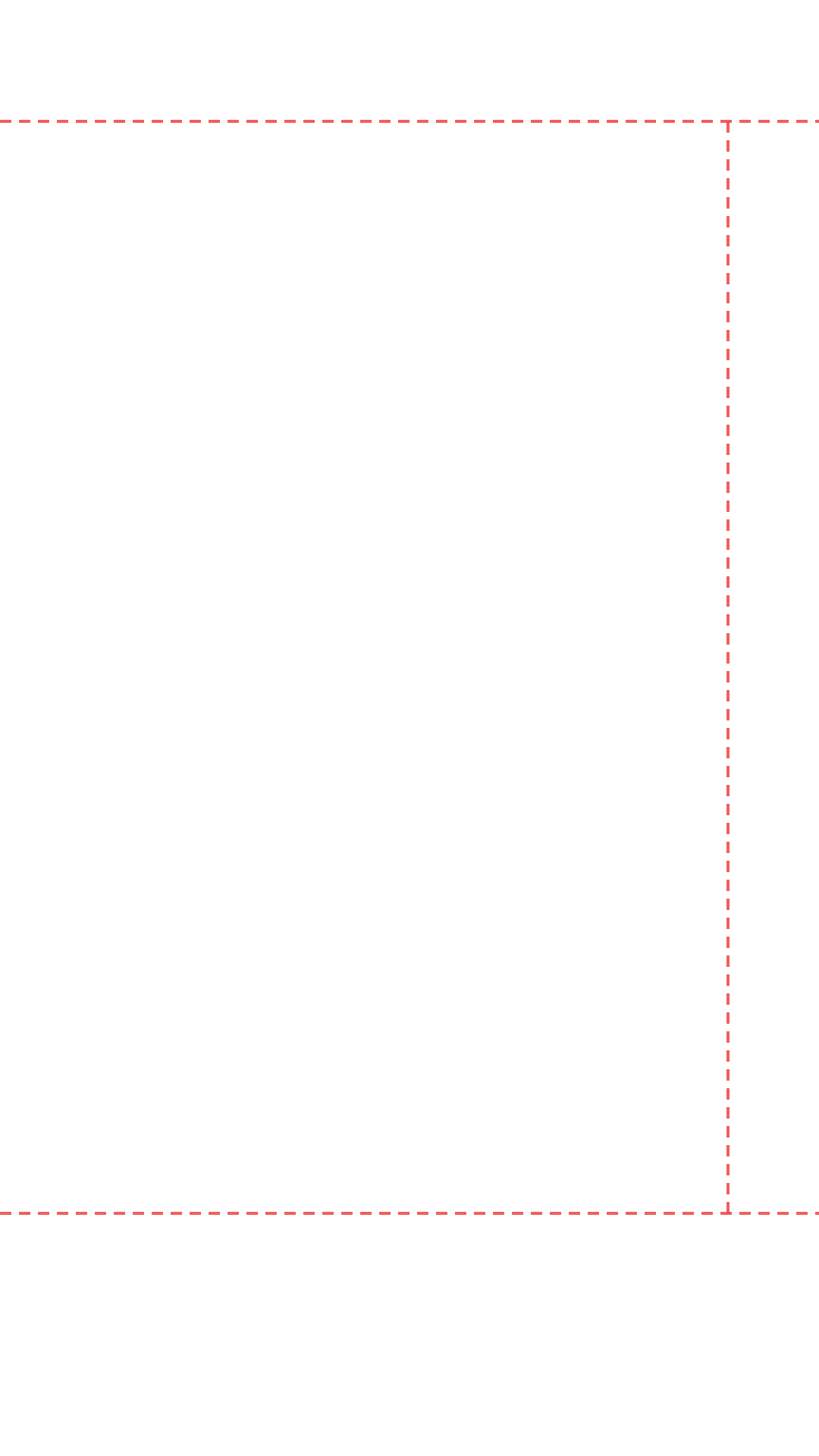
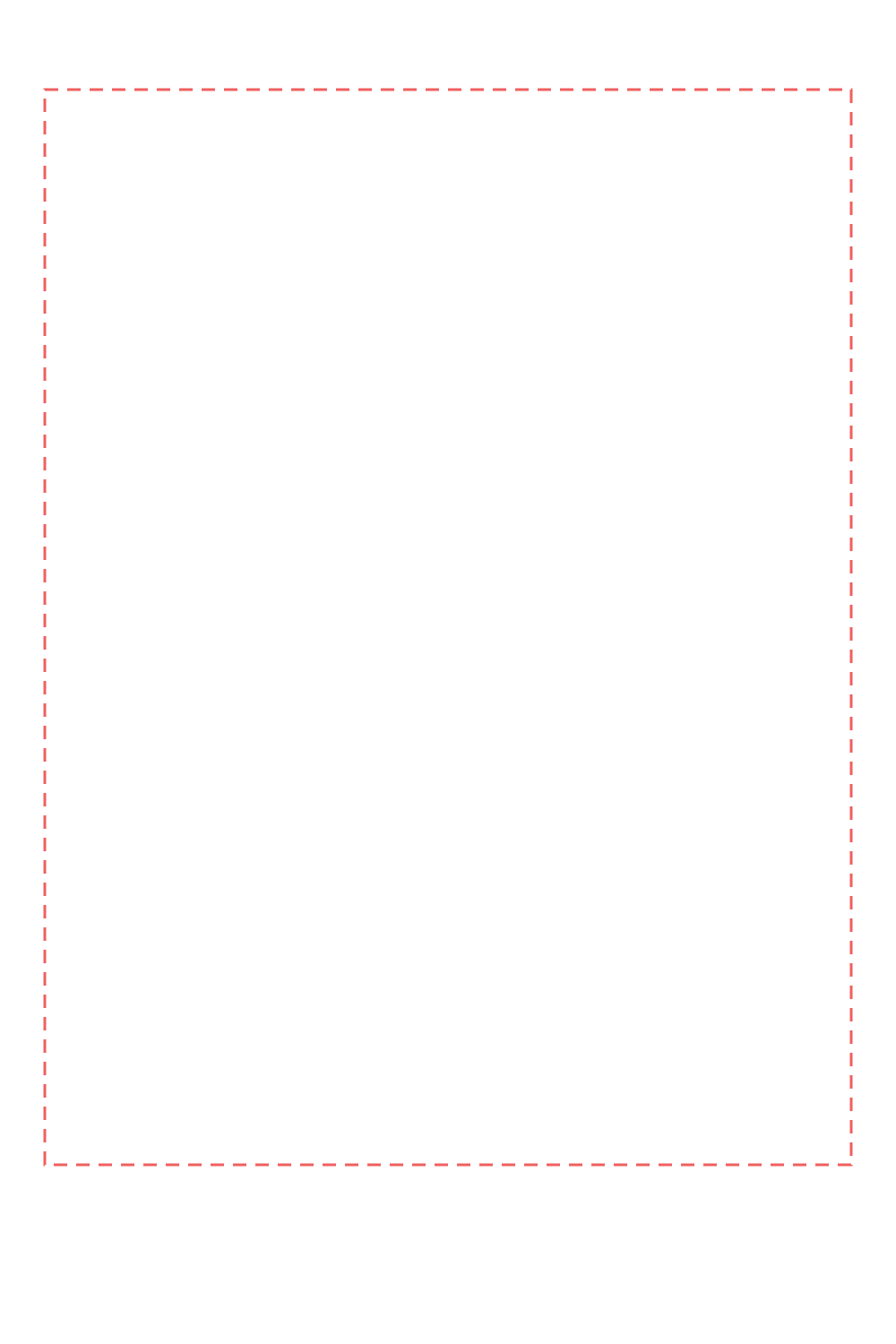

Preview Before You Download
1. Select Platform
2. Upload Asset
Images: PNG, JPG, WebP · Videos: MP4, WebM, MOV
Drag & drop your file here
Images: PNG, JPG, WebP
Videos: MP4, WebM, MOV (max 200 MB)
How to Use the Safe Zone Template in Figma
- 1
Download the overlay PNG
Click the platform button above to download the transparent PNG. Each file is full resolution and matches the platform's native canvas size — 1080×1920px for vertical formats, 1280×720px for YouTube Thumbnails, and 1000×1500px for Pinterest.
- 2
Create a Figma frame at the correct size
In Figma, create a new frame using the exact dimensions for your platform. For TikTok and Instagram Reels use 1080×1920, for YouTube Thumbnails use 1280×720, and for Pinterest use 1000×1500. Figma's frame presets include some of these under the 'Social Media' section.
- 3
Import the PNG into Figma
Drag the downloaded PNG directly onto your Figma canvas, or use File → Place Image to import it. Drop it inside your frame.
- 4
Resize to fill the frame exactly
Set the PNG's width and height to match the frame exactly using the W and H fields in the right panel. The image should cover the frame edge to edge. The transparent background means only the red dashed lines will be visible.
- 5
Lock the layer
In the Layers panel, right-click the PNG layer and select Lock. A locked layer cannot be accidentally selected or moved while you design on layers beneath it.
- 6
Design on layers below
Add your text, shapes, and graphics on new layers beneath the locked safe zone overlay. Keep all important content inside the boundary lines to ensure nothing is hidden by the platform's UI when published.
- 7
Hide or delete before export
Before exporting your final design, click the eye icon next to the safe zone layer in the Layers panel to hide it, or delete it entirely. Export your design without the overlay visible.
Why Use a Figma Safe Zone Template for Social Media
Figma is the go-to design tool for product designers and UI/UX professionals, but it is also increasingly used by social media designers and creative agencies to produce thumbnail and short-form video content at scale. Unlike Canva, Figma supports precise pixel-level control, component libraries, and shared team files — making it ideal for creating reusable social media templates that multiple designers can use simultaneously.
A Figma safe zone template gives your entire design team a consistent guide layer that can be locked inside every social media frame. When a new designer joins or a client requests a new format, the safe zone boundaries are already built into the file — no one needs to remember the exact pixel margins for each platform.
The transparent PNG overlays on this page are pixel-accurate to the live safe zone preview tool. They are generated from the same margin constants used in the browser-based previewer, so your Figma designs and your final published content will match exactly. Import the TikTok overlay into your TikTok template file, the Reels overlay into your Instagram template file, and so on — then lock each one and never think about safe zone margins again.
Figma Safe Zone Template for Agencies
If you manage social media design for multiple clients, safe zone templates in Figma are particularly valuable. Create a shared Figma library with safe zone frames for each platform, and every designer on your team works within the correct boundaries automatically. The locked overlay layer approach means junior designers cannot accidentally place critical content in hidden zones — the boundary lines are always visible as a visual constraint during the design process.